As an instructor, you can create your own courses on our Team.Blue University. This guide will show you the basics of this platform, as well as best practices to uphold.
Rules for conformity
- All courses need to be created in English
- Naming convention:
If your course is region or department specific, this needs to be reflected in the title of your course.
Example:
“Combell – Support Basics”
“Transip – Debugging”
“Nominalia – Control panel” - If your course contains info that is global, you can name it generically.
Example:
“WordPress”
“WP-CLI” - Thumbnails are created with a predefined template (see below)
By adhering to these standards, we aim to keep conformity in our Learning Platform.
Groups
The Learning environment now supports groups. This is a collection of students which a grouped based upon:
- department
- function
- company
- region
- learning theme
Such groups can be created in the backend, but if required, please contact Brecht Ryckaert for implementation.
This allows us for example to create a group for a local support team. Any student that is included in that group will be auto-enrolled in a pre-defined set of course. Which could for example be used for the training of new support engineers.
Creating a course
To create a course, you’ll need to log into the backend of our platform. This can be done via https://lms.combell.com/wp-admin/.
- Once logged in, you’ll find “Sensei LMS” in the sidebar. Click it to open all options.
- Now click “Courses”
- At the top of the page, click “New course”. This will open the wizard that guides you through the initial setup.
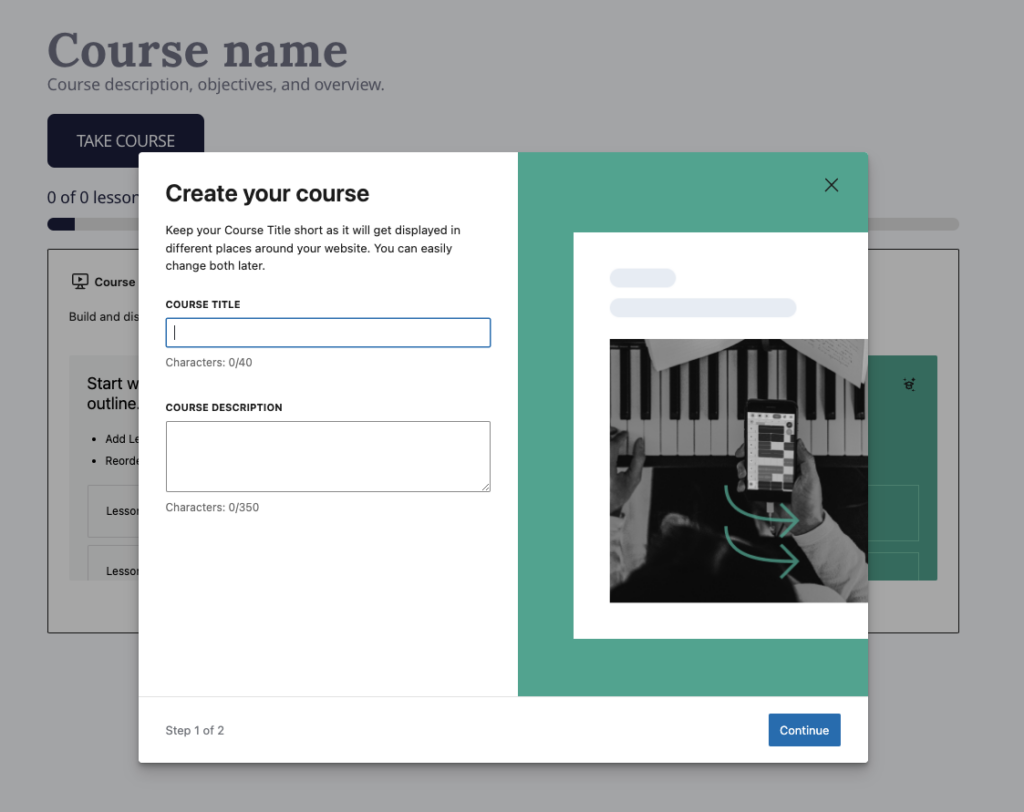
- Here you’ll enter a Course title and Course description. The purpose of both is quite self-evident. Click next.
- Now choose the “Course default” layout as your course layout.
This now brings you to this screen:
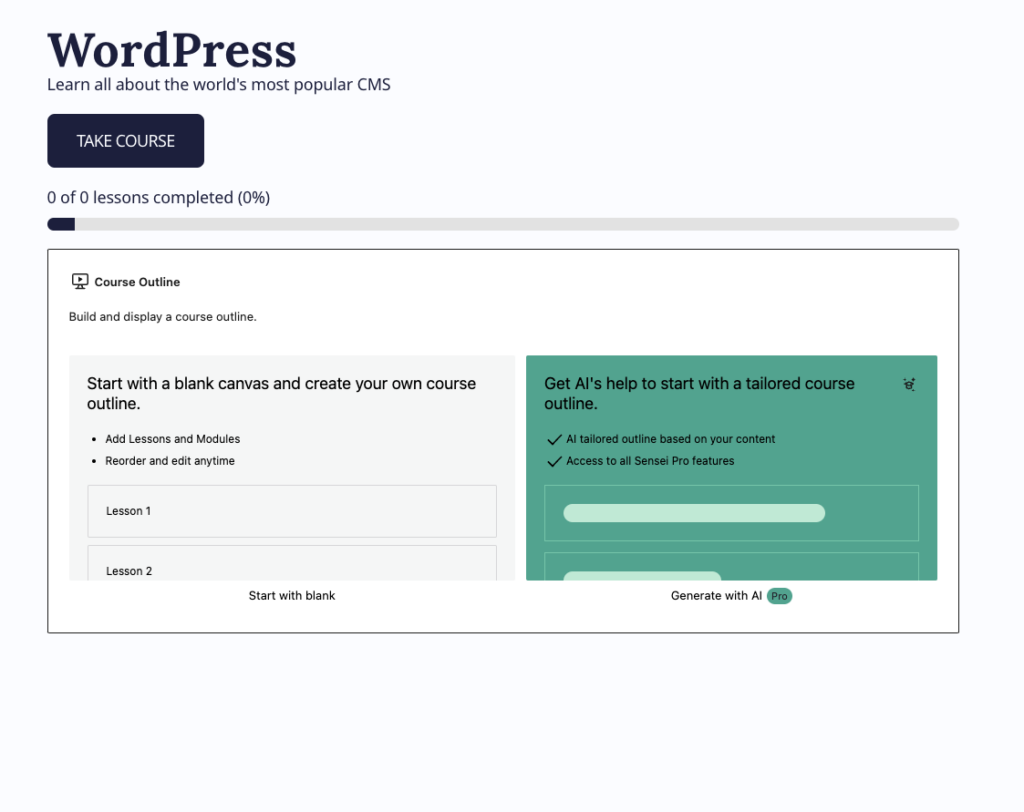
- Here you’ll need to select “Start with blank”.
Immediately, you can start entering the lesson titles and create the basic structure of your course.
Adding a Thumbnail
To add a thumbnail to your course, you’ll first need to create one. To keep things consistent and prevent our course overview page slowly turning into an adult coloring book, we’ll all use this template on Canva to create our thumbnail:
Once you’ve created it, you can add it as follows.
- In the WordPress backend, go to “Sensei” and click “Courses”.
- Click “edit” on the course where you want to add your thumbnail.
- In the top right hand corner, click “Set featured image” and upload your thumbnail.
- Don’t forget to save your edit.
Create your lesson
Once the lesson structure has been created (see prior procedure), you can click “Edit lesson” to start inputting your content:
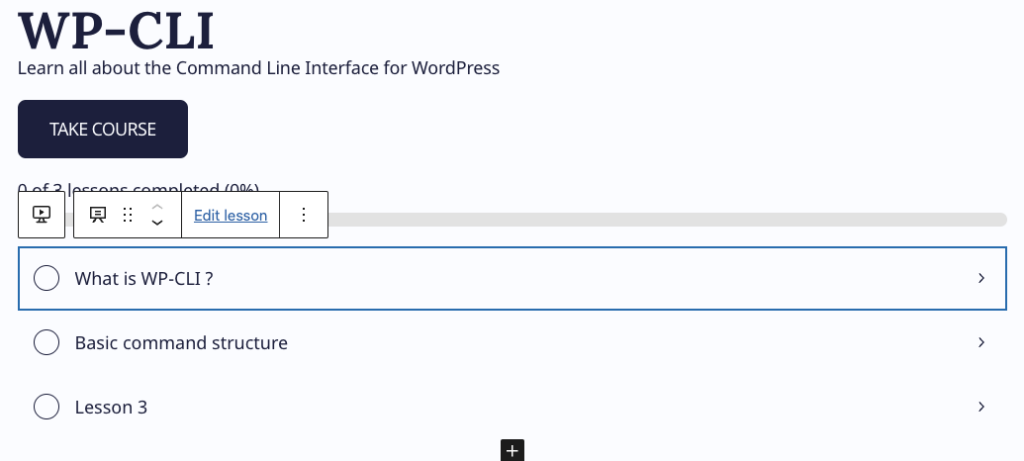
This takes you to the wizard to create your lesson:
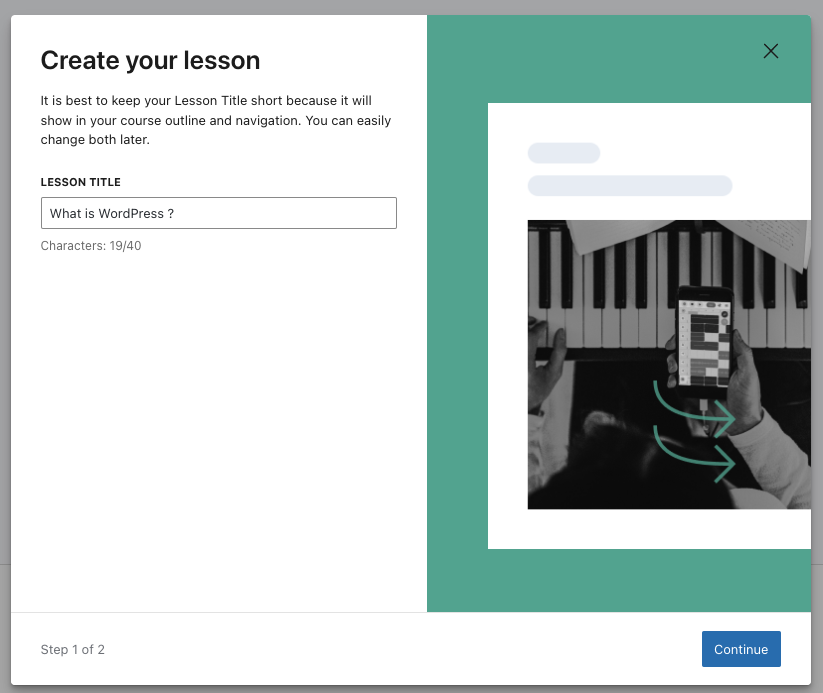
After clicking “Continue”, you’ll have to decide what type of lesson you want to create. You have several options:
- Default Lesson
- Discussion Question
- Video
- Flashcards
- Lesson with Quiz
- Task List
- Zoom/Meeting: we probably will never use this
- Timed Quiz: a quiz that needs to be completed in a predefined limited time amount
- Files to download: useful if you want the student to have a PDF file with a reference document for example
In most cases, as we can create the quizzes separately, we’ll use “Default lesson” or “Video” to get our content across.
Create a quiz
In essence is creating a quiz the exact same as creating a lesson:
You add a lesson first and then click “Edit lesson”
Here you can now choose either “Lesson with quiz” (if you want to add the quiz directly into a lesson) or “Timed Quiz” if you only want to add the quiz itself. I personally prefer the quizzes to be separate from the lesson, so “Timed Quiz” is the preference here.
By default we prefer to set the timer of a quiz to 5 minutes. No pressure 😉